Can’t find your calendar? (iPhone)
SyncWake reads the calendars stored on your iPhone, the same ones Apple’s Calendar app shows. If a calendar isn’t in SyncWake’s list, your iPhone doesn’t have it yet. Add the account in the Settings app, then come back to SyncWake and select it.
Outlook.com or Exchange? Check this first
Outlook is the name of an app, not your account type. Reading your email in the Outlook app does not mean you have an Outlook.com account. Most work and school email is a Microsoft Exchange account, and adding it as Outlook.com fails.
Look at your email address, not the app you use:
Personal Microsoft account
Ends in @outlook.com, @hotmail.com, @live.com or @msn.com. You created it yourself.
Choose Outlook.com
Work or school account
Your employer’s or school’s address, like you@company.com or you@university.edu. It was given to you.
Choose Microsoft Exchange
The Outlook app on iPhone can’t share its calendar with other apps. Events you see only in the Outlook app never reach your iPhone’s calendar, so SyncWake can’t see them. Add the account in Settings as shown below, even if you already use the Outlook app.
How to add an account
- Open the Settings app.
- Go to Apps › Calendar.
- Tap Calendar Accounts › Add Account. If your iPhone has no calendar accounts yet, Add Account… is right on the Calendar page instead.
- iPhone asks for your email address first. To pick the account type yourself, tap choose from a list. For a work or school address, pick it this way so you can choose Microsoft Exchange.
- Pick your provider, sign in, and make sure Calendars is turned on before you tap Save.
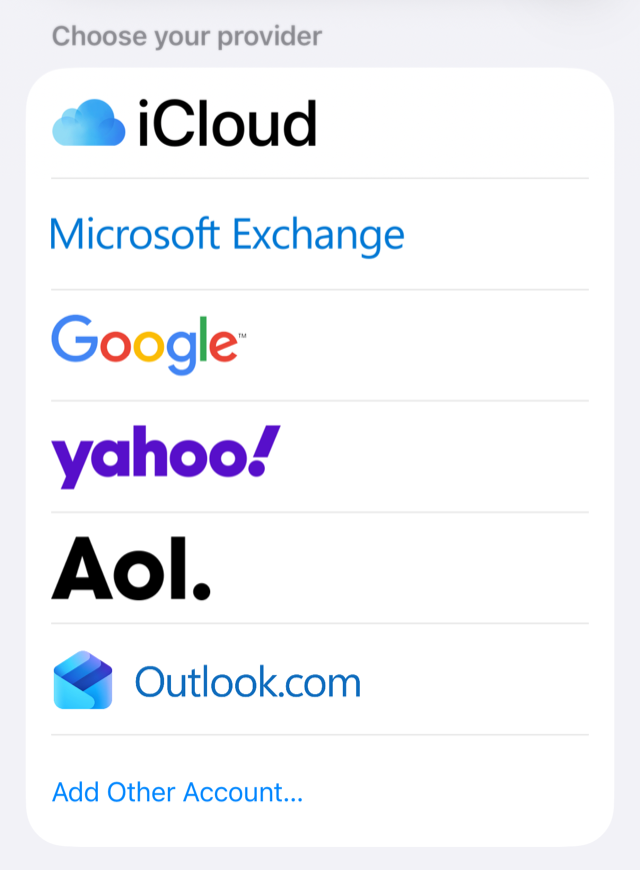
Microsoft Exchange (work or school)
Use this for a work or school address, including Microsoft 365, even if you read that email in the Outlook app.
- From Add Account, choose Microsoft Exchange.
- Enter your work or school email address and tap Next.
- Tap Sign In. Your organization’s sign-in page opens, often the same Microsoft page you use at work. Only use Configure Manually if your IT department gave you server details.
- Turn on Calendars (you can turn the others off), then tap Save.
iPhone shows a notice that adding an Exchange account lets the Exchange administrator manage your device. That is Apple’s standard wording for every Exchange account. What your organization can actually do depends on its own policies.
If sign-in is blocked
Some organizations only allow their email and calendar in the Outlook app, and block the iPhone’s own Calendar. If Exchange sign-in is refused after you enter the right password, that is usually why. On iPhone there’s no way around it from the Outlook app. Ask your IT department whether the iPhone Calendar app is allowed.
Outlook.com, Hotmail, Live (personal)
Only for personal addresses ending in @outlook.com, @hotmail.com, @live.com or @msn.com.
- From Add Account, choose Outlook.com.
- Sign in with your Microsoft account and allow access.
- Turn on Calendars and tap Save.
If Outlook.com won’t accept your address, it’s probably a work or school account. Use Microsoft Exchange instead.
Google Calendar
- From Add Account, choose Google and sign in.
- Turn on Calendars and tap Save.
If the account is already on your iPhone, go to Settings › Apps › Calendar › Calendar Accounts, tap the Google account and turn on Calendars.
Some Google calendars are missing
Google decides which of your calendars reach iPhone. Calendars shared with you are often left out until you turn them on at calendar.google.com/calendar/syncselect. Sign in with the same Google account, tick the calendars you want, and tap Save. They can take a few minutes to appear.
iCloud
iCloud calendars are usually already there. If not:
- Go to Settings › your name › iCloud.
- Tap See All, then iCloud Calendar.
- Turn on Use on this iPhone.
Yahoo, AOL and other calendars
- Yahoo and AOL: choose them from Add Account and turn on Calendars.
- Other providers (Fastmail, Nextcloud and similar): choose Add Other Account › Add CalDAV Account and enter the server details from your provider.
- A calendar link ending in .ics (sports schedules, school timetables): choose Add Other Account › Add Subscribed Calendar and paste the link.
Still missing?
- Check Calendars is on for the account. Go to Settings › Apps › Calendar › Calendar Accounts, tap the account, and make sure Calendars is on.
- Give it a minute. A newly added account can take a few minutes to download. Open Apple’s Calendar app and check your events are there. Once they are, SyncWake can see them too.
- Check SyncWake’s calendar access. Go to Settings › Apps › SyncWake › Calendars and choose Full Access.
- Reopen the list in SyncWake. Go back to SyncWake’s calendar screen and select the new calendar. Only selected calendars become alarms.
Still stuck? Email founder@syncwake.com. Tell us which calendar you use (Google, Outlook.com, work or school Exchange, iCloud) and what you see.